The safest beginner Proxifier setup is not “route everything.” It is route one app, test it, then expand only if needed.
Proxifier can send applications that do not have their own proxy settings through SOCKS or HTTPS proxies. That power is useful, but it is easy to create problems: double-proxying an app, using an HTTP proxy where SOCKS5 is needed, routing local services by accident, or forgetting to test the visible IP after setup.
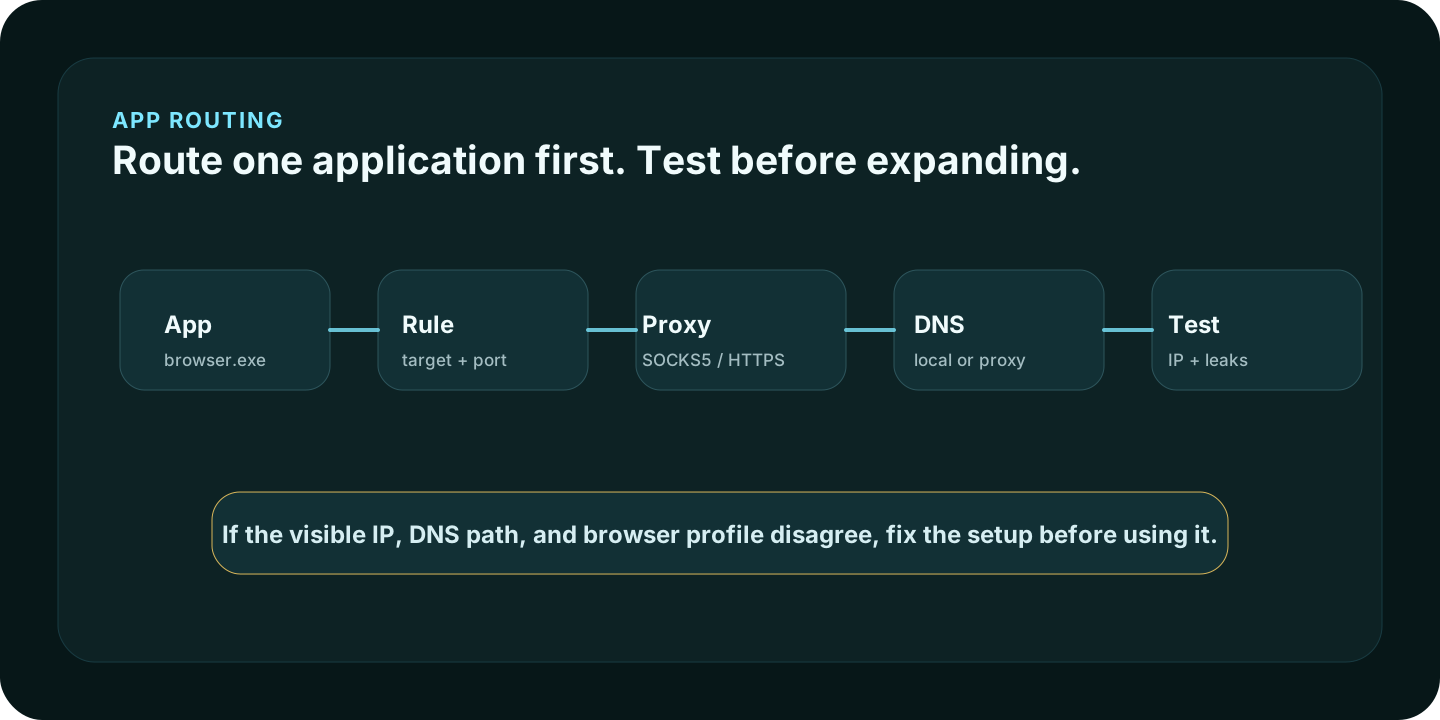
Quick setup path
| Step | What to do | Why it matters |
|---|---|---|
| 1 | Install Proxifier for Windows. | Use the standard app before experimenting with portable or service modes. |
| 2 | Get a real SOCKS5 or HTTPS proxy. | Proxifier is a router; it does not provide proxy servers. |
| 3 | Add the proxy in Profile -> Proxy Servers. | Store address, port, protocol, and authentication in one place. |
| 4 | Test it with Proxy Checker. | Bad credentials or unsupported protocols should be caught before routing apps. |
| 5 | Create one Proxification Rule. | Route a specific .exe instead of the whole system. |
| 6 | Test the visible IP. | Confirm the app actually exits through the selected proxy. |
What Proxifier does
Proxifier routes network connections from applications through a proxy server or proxy chain. Its Windows documentation says it can run applications through SOCKS or HTTPS proxies, tunnel all system TCP connections or selected connections, resolve DNS names through a proxy, and use flexible proxification rules.
That means Proxifier is useful when an app does not have its own proxy settings. It is not a proxy provider, a VPN, or a privacy guarantee by itself.
Before you start
You need:
- a Windows Proxifier installation
- a proxy hostname or IP address
- a port
- protocol type, usually SOCKS5 or HTTPS
- username/password or IP allowlist authentication
- a target app to route first
- a way to test the visible IP afterward
If you do not have a proxy yet, choose the proxy type first with the proxy type selector. Then compare providers in the affordable proxy provider guide.
Add a proxy server in Proxifier
Open Proxifier and go to:
Profile -> Proxy Servers -> AddEnter the proxy address, port, protocol, and authentication details. For most modern app-routing setups, SOCKS5 is the safer starting point because it supports authentication and broader TCP use cases. HTTPS proxies can work when the proxy supports CONNECT tunneling. Plain HTTP proxy support is more limited.
The official documentation lists SOCKS4(A), SOCKS5, HTTPS, and HTTP support, but also warns that many HTTP proxies cannot be used as HTTPS/CONNECT proxies.
Test the proxy with Proxy Checker
Before building rules, run Proxifier’s proxy checker. This catches common mistakes:
- wrong hostname or port
- wrong protocol
- bad username or password
- expired proxy subscription
- IP allowlist mismatch
- HTTP proxy used where HTTPS/SOCKS5 is needed
If the proxy fails in Proxy Checker, do not build rules yet. Fix the proxy first.
Route one app through Proxifier
Open:
Profile -> Proxification RulesCreate a rule for one executable, such as a browser profile or a specific desktop app. Leave the target host and port broad at first only if you understand the risk. The point is to confirm that one app can route correctly before touching the default rule.
A clean beginner rule looks like this:
| Field | Example |
|---|---|
| Name | Browser test route |
| Applications | chrome.exe or firefox.exe |
| Target hosts | Any |
| Target ports | Any |
| Action | Your SOCKS5 or HTTPS proxy |
Keep the built-in Localhost rule enabled unless you know why loopback traffic must be proxied. Some applications rely on local connections.
DNS and name resolution
Proxifier can resolve hostnames through a proxy. This is useful when local DNS is unavailable or when local name resolution creates problems. It also has tradeoffs. The documentation explains that when resolving names through a proxy, Proxifier may assign placeholder fake IPs such as 127.8.*.*, and IP-address-based rules will not work the same way.
Beginner guidance:
- leave automatic DNS detection on unless you have a reason to change it
- test the visible route after changing name-resolution behavior
- avoid mixing hostname and IP-based rules until you understand how Proxifier is resolving names
Proxy chains
Proxy chains can route traffic through more than one proxy. Do not use chains as a beginner default. Chains add latency, more failure points, and more confusing debugging.
Use a chain only when you have a specific reason, such as testing redundancy or a controlled network path. For most users, one good proxy with a clear rule is easier to verify.
Test the setup after routing
After the rule is active, open the routed app and check what the web sees:
- Open the IP Lookup and What’s My IP tool.
- Confirm the public IP changed to the expected proxy route.
- Check the approximate country, region, ASN, and ISP/network name.
- Check whether the browser timezone and language make sense for that route.
- If privacy matters, test WebRTC and DNS behavior with a dedicated leak test.
Troubleshooting
The app still shows my real IP
Check that the rule matches the correct executable. Browser updaters, helper processes, and app launchers may use different executable names.
The app cannot connect
Check the proxy protocol, port, credentials, and IP allowlist. If the proxy works in a browser but fails in Proxifier, the provider may be giving an HTTP proxy that does not support the tunnel behavior you need.
DNS results do not match the proxy
Review Proxifier name resolution settings. Decide whether DNS should resolve locally or through the proxy and test again from the routed app.
Everything is slow
Test the proxy directly, then test Proxifier with one app. Proxy chains, overloaded residential endpoints, distant locations, and mobile routes can all add latency.
Proxifier setup checklist
- Disable old proxy settings inside the app before routing it through Proxifier.
- Add one SOCKS5 or HTTPS proxy server first.
- Run Proxy Checker before creating rules.
- Create one application rule instead of changing the default rule immediately.
- Keep Localhost direct unless you know why loopback traffic should be proxied.
- Review name resolution before relying on host or IP rules.
- Validate the result with IP Lookup from the routed application.
Use Proxifier responsibly
Proxifier is a routing tool. Use it for lawful, policy-compliant workflows: development, app testing, regional QA, privacy-conscious browsing, and legitimate proxy routing. Do not use it to bypass access controls, break platform rules, or hide abusive traffic.
FAQ
Does Proxifier provide proxy servers?
No. Proxifier routes apps through proxy servers you already have. You still need a proxy provider, internal proxy, or corporate gateway.
Should I use SOCKS5 or HTTPS?
SOCKS5 is usually the safer first choice for app routing because it supports authentication and broad TCP use cases. HTTPS can work when the proxy supports CONNECT tunneling. Plain HTTP proxy behavior is more limited.
Can Proxifier route only one app?
Yes. That is the recommended beginner setup. Use Proxification Rules to match a specific application and send only that app through the proxy.
How do I know Proxifier is working?
Open a web-based IP check inside the routed app and compare the visible IP, ASN, and location with the expected proxy route. Aerod’s IP Lookup tool is a good first check.
Methodology
How Aerod validates Proxifier guidance
- Start from Proxifier’s official Windows documentation for proxy server settings, rules, name resolution, and proxy support.
- Prefer one-app routing before default system-wide routing.
- Treat DNS and WebRTC as separate checks from visible IP.
- Link provider buying decisions to proxy type selection, not to generic proxy hype.
- Keep affiliate links separated from technical setup steps.